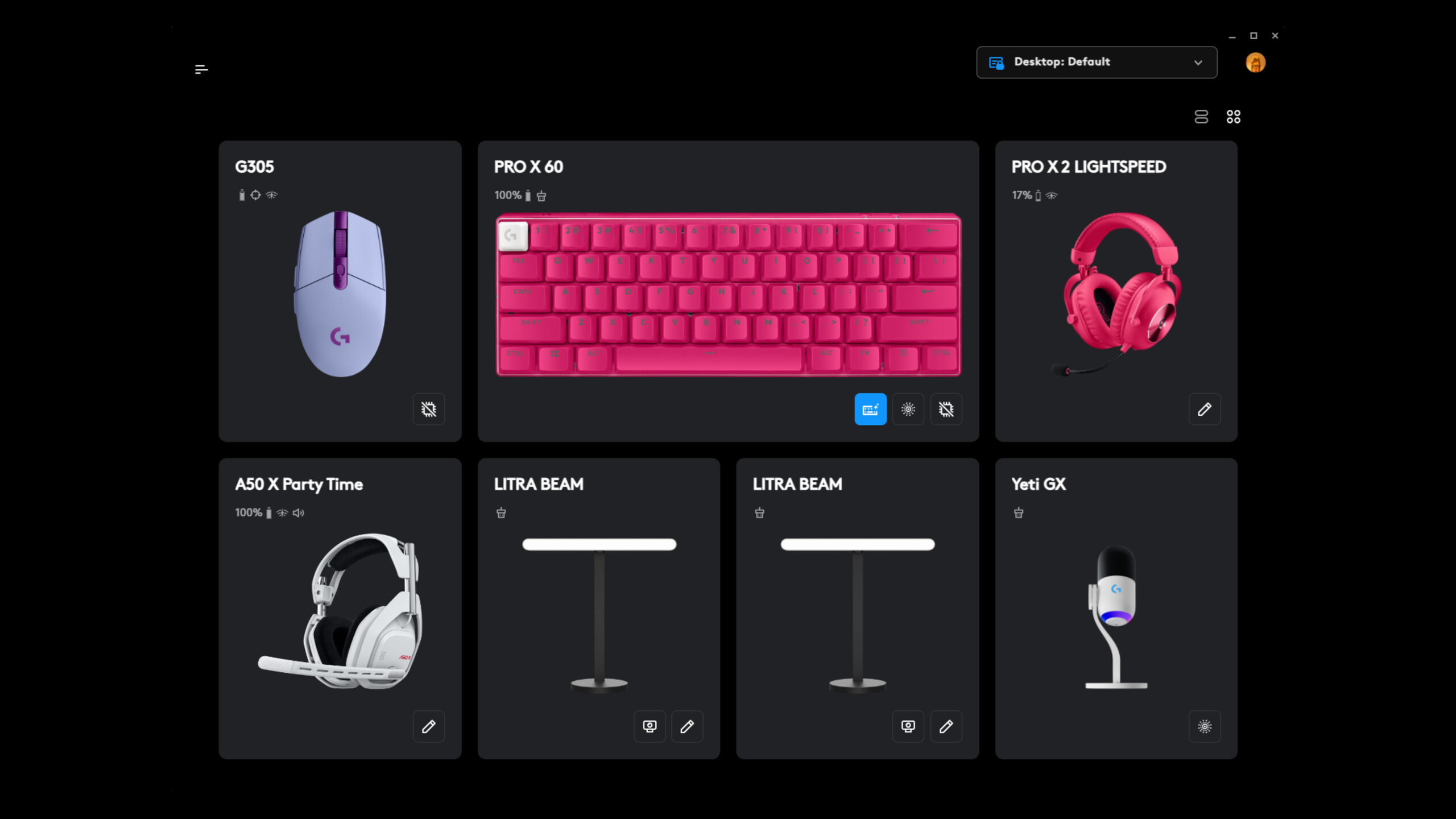
Logitech G Hub is powerful configuration software designed to bring next‑level customization and control to Logitech gaming peripherals. Whether you are a competitive gamer, content creator, streamer, or simply someone who wants maximum control over your gear, G Hub represents the modern standard for Logitech device management. This guide covers everything about G Hub from installation to advanced features, optimization strategies, common issues, solutions, and how to leverage every tool within it for peak performance.
What Is Logitech G Hub
Logitech G Hub is software developed by Logitech that allows users to customize, control, and synchronize settings across a wide range of Logitech gaming devices including mice, keyboards, headsets, and controllers. It replaces older software like Logitech Gaming Software and merges features into one unified UI. G Hub provides customizable RGB lighting, macro creation, sensitivity adjustments, profile management per game, and integration with third‑party applications. The core design philosophy behind G Hub is to provide modular control with an easy‑to‑navigate, modern interface so that every user can fine‑tune hardware behavior with precision.
Why Use G Hub Over Older Logitech Software
Logitech G Hub offers many advantages compared to legacy software. It supports more recent peripherals and has a more modern interface that scales better with displays and future devices. The unified profile system allows game‑specific configurations that automatically load when a game starts. Logitech Gaming Software had a less intuitive profile system and fewer automation features. G Hub also offers better macro programming, seamless firmware updates, and integration with other software layers like RGB apps and game overlays. Furthermore, G Hub continues to receive updates, making it the future‑facing ecosystem for Logitech gaming devices.
Installing Logitech G Hub
Installing Logitech G Hub is straightforward but it is important to follow the correct steps to avoid common issues. Begin by downloading the installer from the official Logitech site. Once downloaded, run the installer and allow it to make changes to your system. The installer will prompt you to accept the terms and then proceed to install the software. After installation, restart your system even if the installer does not request it. Restarting ensures that core drivers and services initialize correctly.
During the installation, pay attention to permission prompts. Windows and macOS may ask to grant access for device control or configuration files. Accept these permissions to enable full functionality. After restarting, open G Hub and connect your Logitech devices one by one to verify recognition. If a device is not recognized, check the USB port, cable, and make sure the device is supported by G Hub.
Understanding G Hub Interface
G Hub interface is divided into several core areas that each serve a specific purpose. At the top level is the Home Screen which displays all connected devices. Each device tile acts as an entry point into its configuration panel. Clicking a device opens the customization page where you can adjust settings like DPI, key bindings, lighting, and performance profiles.
To the left of the UI is the Navigation Bar that allows quick access to system settings, profile collections, and plugins. The system settings panel is where you can check for software updates, language preferences, and system reports. Plugins allow Logitech G Hub to extend functionality, including integrations with streaming apps, overlays, and third‑party utilities.
At the bottom of the screen is the Profile Switcher which displays active profiles and allows you to create new ones. Profiles can be linked to specific games or applications. When a linked game launches, G Hub automatically switches to the associated profile, ensuring that your mouse sensitivity and key bindings are optimized for that game.
Device Support and Compatibility
G Hub supports a wide range of Logitech devices including Logitech G Hub series mice like the G502, G Pro Wireless, keyboards like G915, headsets like the G Pro X, and controllers like the F310. Compatibility continues to expand as Logitech releases firmware and driver updates.
To check if your device is supported, open G Hub and look for its tile on the home screen after connection. If a device does not appear, ensure that it is plugged directly into a USB port and not through an unpowered hub. Some older Logitech devices may only be supported by Logitech Gaming Software, but the majority of modern peripherals are fully supported by G Hub.
Configuring Mouse Settings
One of the most common uses of G Hub is to configure gaming mice. Within a mouse’s panel, users can adjust DPI values, polling rate, button assignments, and surface tuning.
DPI and Sensitivity
DPI (dots per inch) controls how far the cursor moves relative to the physical movement of the mouse. In G Hub, you can create a DPI sensitivity array with multiple steps that can be cycled during gameplay. For example, you might set a high DPI value for fast movement and a lower one for precision aiming. G Hub allows you to assign DPI steps easily and reorder them according to preference.
Polling Rate
Polling rate refers to how often the mouse reports position to the system. Higher polling rates reduce latency but use more system resources. Logitech G Hub allows users to choose a polling rate that best balances responsiveness with performance.
Button Assignments
G Hub provides a visual representation of your mouse with all programmable buttons. You can click a button on the virtual mouse to assign commands, key presses, macros, or even launch applications. Advanced users can set up complex macro sequences with delays, repeated actions, and modifier triggers for competitive advantage.
Surface Tuning
Surface tuning calibrates the mouse sensor to the specific surface being used, optimizing tracking precision. In G Hub, surface tuning can be accessed from the sensor settings and works by slowly moving the mouse to let the software analyze texture and feedback characteristics.
Keyboard Customization
Keyboards can be deeply customized in G Hub from lighting to key bindings and performance tweaks.
Lighting Effects
G Hub’s lighting editor allows users to create dynamic lighting patterns including wave, ripple, color cycle, and reactive modes. Users can assign lighting based on key groups, game events, or even synchronize across multiple devices. The editor supports layering effects and creating custom animations.
Key Binding and Macros
Similar to mice, keyboards in G Hub allow key reassignment and macro creation. For example, you can program a macro that performs a series of actions in rapid succession, ideal for gaming or productivity workflows. G Hub’s macro editor includes record, edit, delete, and loop controls.
Game Mode and Function Layers
Game Mode can disable specific keys like the Windows key during gameplay to prevent accidental interruptions. Function layers allow secondary commands to be mapped to keys using a modifier, effectively giving each key multiple functions based on layer selection.
Headset Control and Audio Profiles
For Logitech headsets, G Hub allows customization of audio profiles. This includes equalizer settings, surround sound adjustments, and microphone controls.
Equalizer and Sound Presets
The equalizer within Logitech G Hub lets users adjust frequency bands to shape the sound signature. Presets can be saved for competitive gaming, cinematic experiences, or music playback. Users can create multiple profiles and switch them with a click.
Microphone Tuning
Microphone settings include volume, sidetone control, noise reduction, and limiter settings that help maintain consistent voice levels during chats. G Hub also offers presets based on voice clarity and background noise suppression strength.
Surround Sound and Spatial Audio
Some headsets support surround sound features that simulate a 3D audio environment. G Hub lets users toggle spatial audio modes and adjust parameters like distance and intensity for more immersive experiences.
Creating and Managing Profiles
Profiles in Logitech G Hub allow settings to change automatically based on the active game or application. Users can create profiles manually and link them to application executables. When the game launches, G Hub detects the process and loads the appropriate profile.
Profile components include DPI arrays, key bindings, lighting, sensitivity settings, and audio profiles. Profiles can be exported and shared with the community. This makes it easy to adopt configurations from professional players or content creators.
Advanced Macro Programming
Macros in G Hub go beyond simple key presses. Advanced macro programming allows conditional logic, repeated loops, timed delays, and sequence stacking. For competitive gamers, this means executing complex actions with consistent timing. The macro editor provides intuitive controls to define sequences and adjust timing down to milliseconds.
RGB Lighting Ecosystem and Synchronization
Logitech G Hub unifies RGB lighting across supported devices. Users can link lighting effects so that multiple devices react in harmony. For example, a keyboard wave effect can synchronize with mouse lighting pulses based on keypress events. This is done through the lighting sync panel.
G Hub also supports game‑integrated lighting where certain effects trigger based on game actions. For example, lighting could flash red on low health status in a game that supports RGB integration.
Using G Hub with Third‑Party Tools and Plugins
G Hub supports plugins and extensions that expand its usefulness. Plugins can integrate with streaming software, add additional profiles, or provide telemetry on device performance. Users can browse available plugins within the plugin section of the G Hub navigation panel. Installing plugins enhances capabilities and unlocks new workflows that are not available in the base software.
Troubleshooting Common Issues
Despite being robust, users may encounter issues like devices not being recognized, profiles not loading, lighting not applying, or G Hub freezing. Troubleshooting begins with verifying the latest software version and firmware updates. If an update is available, install it first.
If a device isn’t recognized, try different USB ports and avoid unpowered USB hubs. Sometimes reconnecting the device after G Hub is open forces detection. Resetting the device firmware through G Hub can resolve communication errors.
When profiles fail to apply, check the profile link to the specific game executable path. If another software like Steam overlays conflict, disabling overlays temporarily can help. Clearing corrupted profile files and reimporting them often resolves persistent configuration problems.
Performance Optimization Tips
For the best experience, ensure G Hub runs with necessary system permissions. On Windows, running as administrator can prevent permission‑related issues. Keeping firmware up to date improves stability and unlocks new features. Organizing profiles by genre and naming them clearly makes switching easier.
Use DPI settings consistent with monitor resolution and personal playstyle to avoid erratic cursor movement. Avoid excessive polling rates on systems with limited USB resources. Customize lighting effects only as needed to reduce CPU usage from real‑time animations.
Syncing Settings Across Devices
Users with multiple systems can sync profiles using cloud saves if logged in with a Logitech account. This ensures that personalized settings are available across different PCs. When changing settings on one system, updating to cloud ensures others receive the latest configurations.
Best Practices for Competitive Gaming
Competitive gamers must focus on stability and consistency. Avoid complex lighting effects that can distract or cause minor performance hits. Prioritize DPI and sensitivity settings that translate well across different in‑game scenarios. Use macros judiciously within tournament rules and configure game‑specific profiles that load instantly without delay.
Future of Logitech G Hub
Logitech continues to expand G Hub with performance enhancements and new integrations. The software roadmap includes deeper integrations with more games, better cloud profile management, expanded plugin marketplace, and improved analytics that help users understand usage patterns and device performance over time.
Conclusion
Logitech G Hub is an essential hub for gamers and power users who want precise control over their Logitech hardware. With advanced customization, profile management, macro programming, and synchronized lighting, G Hub elevates the experience far beyond basic driver control. Mastering G Hub allows users to tailor their setups for competitive environments, immersive gameplay, and optimized productivity workflows.
Understanding every configuration option, troubleshooting common issues, and leveraging advanced features ensures that users maximize the potential of their devices. Whether fine‑tuning DPI steps, crafting dynamic RGB lighting scenes, scripting advanced macros, or creating layered audio profiles, Logitech G Hub stands as a central command center for modern gaming peripherals.
