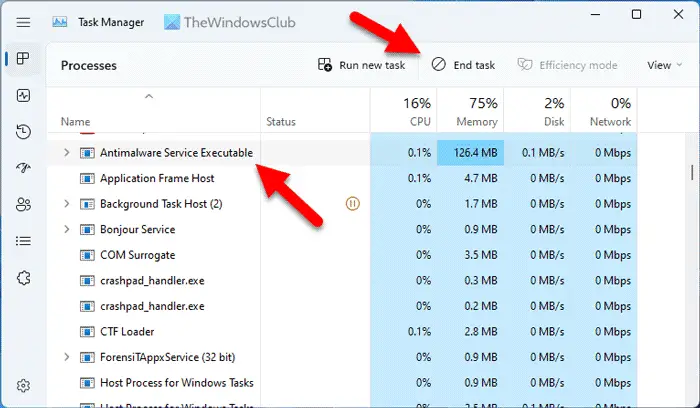
Antimalware Service Executable is a core system process in Windows that protects your computer from malware and threats. Many users see it in the Task Manager and wonder what it does, why it uses system resources, and how to manage it. This guide covers everything from basic explanations to advanced system management, performance insights, troubleshooting steps, and optimization.
Antimalware Service Executable is associated with Windows Defender (also called Microsoft Defender). This means it is not malware itself. It performs real‑time scans, scheduled scans, and threat response.
This guide will help you understand:
- What Antimalware Service Executable is and why it runs
- How it uses CPU, memory, disk, and network
- When high usage is normal vs problematic
- How Windows Defender works under the hood
- Advanced optimization techniques
- Best practices for safety and performance
- Tools and diagnostics
- Common myths and truths
What Is Antimalware Service Executable
Definition and Purpose
Antimalware Service Executable is a Windows process that runs the malware protection engine built into Windows. It constantly monitors your system to detect viruses, ransomware, spyware, and other threats. It also scans files when they are accessed or created.
Windows calls this process MsMpEng.exe.
Antimalware Service Executable is part of the Windows Security platform, which includes:
- Real‑time protection
- Cloud‑based protection
- Automatic sample submission
- Behavior monitoring
- Remediation
This process protects important system files and user data.
Why It Runs Automatically
Windows enables built‑in protection by default to ensure every device has basic malware defense.
Antimalware Service Executable runs automatically because:
- Malware attacks can happen at any time
- Real‑time scanning helps prevent infection before damage
- Scheduled system scans ensure periodic health checks
- Threat definitions update frequently
Without this process, your system is more vulnerable to attacks. Turning it off permanently is not recommended.
How Antimalware Service Executable Works
Real‑Time Protection Engine
At its core, Antimalware Service Executable is a real‑time scanning service. Real‑time protection means the system inspects:
- Files you open or save
- Programs you install or execute
- Scripts and binaries that change
- System calls that could be suspicious
Real‑time protection uses:
- Signature matching
- Heuristics and behavior analysis
- Cloud heuristics
- Machine learning models
Signature matching detects known threats using a database. Heuristics and behavior analysis catch unknown or new threats by observing unusual activity.
Scheduled Scans and Quick Scans
Windows Defender conducts:
- Quick scans
- Full scans
- Custom scans
Quick scans check commonly infected areas like:
- Startup programs
- Memory‑resident processes
- System folders
Full scans check all files and storage devices. Full scans are more resource‑intensive.
Threat Definition Updates
Antimalware Service Executable relies on regularly updated threat definitions. Windows updates these definitions automatically according to Windows Update settings. Updated definitions improve detection of new malware and variants, increasing protection.
Cloud‑Delivered Protection
Windows Defender uses cloud‑based intelligence. When a suspicious file appears, the system can query cloud servers for:
- Reputation analysis
- Advanced detection
- Rapid response
Cloud protection increases detection rates and reduces false positives.
Is Antimalware Service Executable a Virus?
Common Myths vs Reality
No, Antimalware Service Executable is not a virus.
Some users see high CPU/disk usage and mistakenly assume the process is malware. A legitimate MsMpEng.exe is part of Windows Security.
Signs a malware could impersonate this process:
- The file location is not inside
C:\Windows\ - Multiple suspicious copies exist
- Behavior patterns like spawning child processes repeatedly
To check the location of the process:
- Open Task Manager
- Right‑click the process
- Select Open file location
- Verify it is in
C:\Windows\System32\orC:\Program Files\Windows Defender\
If the file is elsewhere, it may be malware imitating the process.
Why Antimalware Service Executable Uses High CPU, Disk, or Memory
Normal High Usage Scenarios
Antimalware Service Executable can use more CPU, disk, or memory when:
- It is conducting a full system scan
- Many files are being created or modified
- A large update just installed
- The system is idle (Windows Defender may scan when idle)
- New threat definitions were downloaded
When High Usage Is Unexpected
Abnormal high usage can occur if:
- Scans run continuously without completing
- Large directories or external drives are constantly scanned
- The system is infected and Defender is struggling to contain threats
- System files are frequently modified by other software
- Another security tool conflicts with Windows Defender
Both normal and abnormal usage patterns can look similar, which is why diagnostic steps are necessary.
Performance Impact and Diagnostics
How to Diagnose Resource Usage
To diagnose Antimalware Service Executable performance:
- Open Task Manager
- Sort by CPU, Memory, or Disk
- Observe when MsMpEng.exe spikes
- Note associated activity patterns
If spikes happen during:
- System idle → normal behavior
- File operations (copy, extract, install) → expected scanning
- Continuous high usage without file activity → possible issue
Resource Monitor Analysis
Use Resource Monitor to see:
- Disk read/write activity
- Network usage
- Associated processes
- Handles and modules
Resource Monitor provides deeper insights than Task Manager.
Detailed Steps to Reduce High Resource Usage
1. Exclude Safe Files and Folders
Excluding specific safe locations from scanning can reduce load. Example:
- Development folders
- Virtual machine images
- Game directories
To add exclusions:
- Open Windows Security
- Go to Virus & threat protection
- Choose Manage settings
- Scroll to Exclusions
- Add files, folders, processes, or file types
Note: Only exclude trusted items. Exclusions reduce protection in those locations.
2. Schedule Scans During Idle Times
Windows can schedule scans at times of low usage:
- Use Task Scheduler
- Navigate to
\Microsoft\Windows\Windows Defender - Adjust scan triggers
- Set conditions to only run when idle
This prevents scans during peak usage.
3. Disable Real‑Time Protection Temporarily
Only do this temporarily:
- Open Windows Security
- Go to Virus & threat protection
- Turn off Real‑time protection
This is NOT recommended permanently, as it lowers security defenses.
4. Use Group Policy for Advanced Control
For Windows Pro/Enterprise:
- Run
gpedit.msc - Navigate to Computer Configuration
- Open Administrative Templates
- Go to Windows Components
- Choose Microsoft Defender Antivirus
Here you can adjust:
- Scan schedules
- Exclusions
- Real‑time settings
Group Policy allows granular control.
5. Registry Tweaks (Advanced Users)
For advanced users comfortable with Registry Editor:
- Open
regedit - Navigate to:
HKEY_LOCAL_MACHINE\SOFTWARE\Policies\Microsoft\Windows Defender - Add or modify keys like:
DisableRealtimeMonitoringDisableBehaviorMonitoringDisableOnAccessProtection
Modifying the registry can impact system stability. Always back up before making changes.
Advanced Optimization Techniques
Using Windows Performance Toolkit
Windows Performance Toolkit (WPT) includes advanced profiling tools:
- Windows Performance Recorder (WPR)
- Windows Performance Analyzer (WPA)
These tools capture system traces and show:
- CPU usage patterns
- Disk IO hot spots
- Thread scheduling
- Module load times
This level of analysis helps pinpoint exactly why Antimalware Service Executable uses resources.
Detecting Malware vs False Positives
Sometimes high usage is triggered by suspicious activity that may be:
- False positive behavior
- Legitimate software patterns
Use:
- Windows Defender Offline Scan
- Alternative scanners (Malwarebytes, ESET Online Scanner)
- Boot‑time scans
Cross‑checking with multiple tools can confirm if an actual threat exists.
Excluding Large Virtual Disk Files
Large Virtual Hard Disk (VHD/VHDX) or virtual machine images (VMware, VirtualBox) can trigger constant scanning.
To manage:
- Either exclude these files
- Or mount them only when necessary
Exclusions prevent Defender from processing massive files repeatedly.
Best Practices for Protection and Performance
Keep Windows Updated
Security updates improve detection and performance. Always install:
- Definition updates
- Windows feature updates
Updated definitions reduce unnecessary scanning cycles.
Avoid Multiple Antivirus Programs
Having more than one antivirus can cause:
- Scan conflicts
- Duplicate scanning
- Performance penalties
Windows Defender automatically disables real‑time protection if another antivirus is installed.
Monitor Background Activity
Use:
- Task Scheduler to see scheduled tasks
- Event Viewer for logs
- Performance Monitor for counters
Monitoring gives visibility into triggers of high usage.
Common Misconceptions About Antimalware Service Executable
Myth: It Is Malware
Reality: It is a built‑in protective system process.
Myth: It Can Be Permanently Disabled Safely
Reality: Disabling protection increases risk. Only temporary suspension is advisable.
Myth: High CPU Always Means a Problem
Reality: High usage during scans is normal.
Myth: Third‑Party Antivirus Always Performs Better
Reality: Many third‑party programs have stronger detection, but Windows Defender is highly capable and integrated.
When to Seek Expert Help
Seek professional assistance if you observe:
- Persistent high usage without legitimate cause
- Frequent threat detections without resolution
- System instability linked to Defender
- Performance impact on critical tasks
Professionals can:
- Perform deep malware analysis
- Configure enterprise policies
- Fine‑tune system performance
Frequently Asked Questions (FAQs)
Is Antimalware Service Executable Essential?
Yes, for basic malware defense it is essential.
Can I Turn It Off Forever?
No. Windows will re‑enable critical protections automatically.
Does It Slow Down Games or Heavy Apps?
It can during scans, but properly scheduled scans reduce conflicts.
Does Defender Protect Against Ransomware?
Yes. It includes ransomware protection and controlled folder access.
Conclusion
Antimalware Service Executable is a powerful, built‑in Windows security service that protects your system from malware. Understanding how it works, why it uses resources, and how to optimize it allows you to maintain both security and performance. Use the guidelines above to diagnose issues, manage system scans effectively, and prevent unnecessary performance impacts while keeping your PC safe.
